Special Promotions for Magento 2 - User Guide
Extension Installation
For Magento Marketplace Customers
- Find the Composer name and version of the extension in the extension's composer.json file.
- Login to your SSH and run:
composer require meetanshi/module-promotions --ignore-platform-reqs
- Enter your authentication keys .Your public key is your username; your private key is your password. '
- Wait for Composer to finish updating your project dependencies and make sure there aren't any errors.
- To verify that the extension installed properly, run the command:
php bin/magento module:status Meetanshi_Promotions
- By default, the extension is probably disabled.
- Enable the extension and clear static view files:
php bin/magento module:enable Meetanshi_Promotions
php bin/magento setup:upgrade
- For Magento version 2.3.x & above -
php bin/magento setup:static-content:deploy --f
php bin/magento cache:flush
For Meetanshi Customers
- Extract the zip folder and upload our extension to the root of your Magento 2 directory via FTP.
- Login to your SSH and run below commands step by step:
php bin/magento setup:upgrade
- For Magento version 2.3.x & above -
php bin/magento setup:static-content:deploy --f
php bin/magento cache:flush
Configuration
To configure the Special Promotions extension, login to Magento 2, navigate to Stores > Configuration > Meetanshi > Promotions where you can find various settings to enable and customize the extension.
General
- Show Rule Label if Discount Amount is 0: Select YES to display the rule label in the order summary even if the calculated discount is $0.

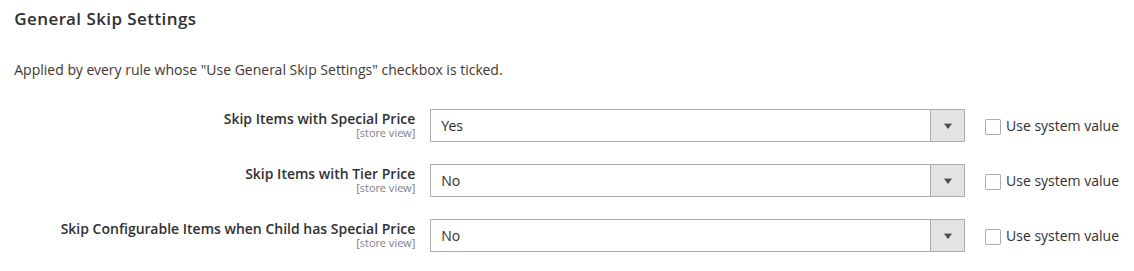
General Skip Settings
- Skip Items with Special Price: Set to YES to exclude items that already have a special price from the promotion.
- Skip Items with Tier Price: Set to YES to exclude items with a tier price.
- Skip Configurable Items when Child has Special Price: Set to YES to exclude configurable products if their selected child (simple) product has a special price.
Discount Breakdown
- Show Discount Breakdown: Set to YES to list each rule and its individual discount amount under the Discount total in the cart and checkout when multiple rules apply.

Debug
- Enable Discount Debug Log: Enable this to write a step-by-step trace of the discount calculation for development or staging use.
- Allowed IPs: Enter comma-separated IPs for which the debug output should be written.

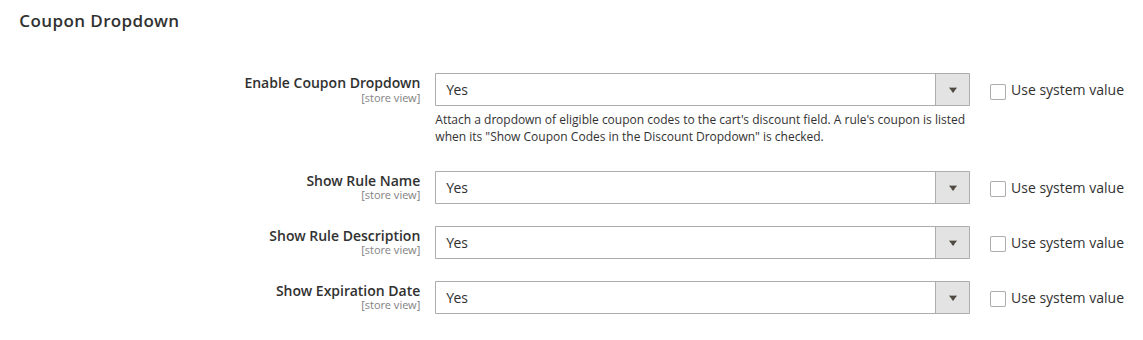
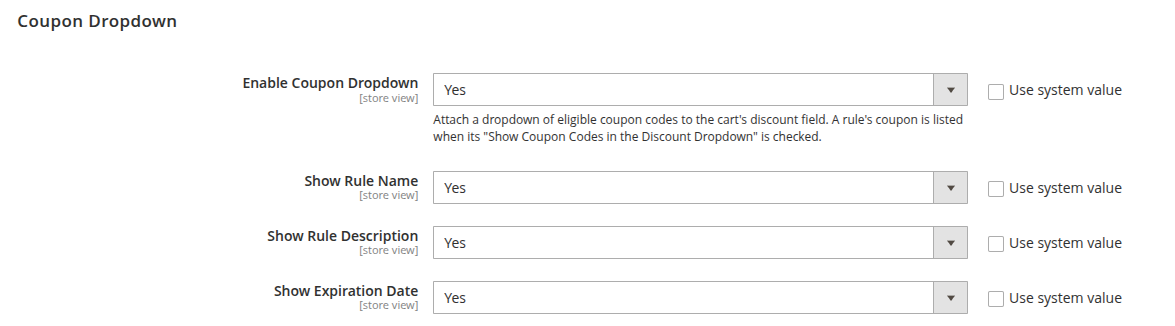
Coupon Dropdown
- Enable Coupon Dropdown: Set to YES to display a dropdown of available coupon codes on the storefront cart page.
- Show Rule Name: Display the rule's name under each coupon code in the dropdown.
- Show Rule Description: Display the rule's description under each coupon code.
- Show Expiration Date: Display the expiration date for coupons that have a "To" date set.
Creating a Promotion (Cart Price Rules)
Go to Marketing > Promotions > Cart Price Rules > Add New Rule. The extension seamlessly integrates with Magento's native rules, adding custom fields and 22 new actions (making 26 in total).
Rule Information
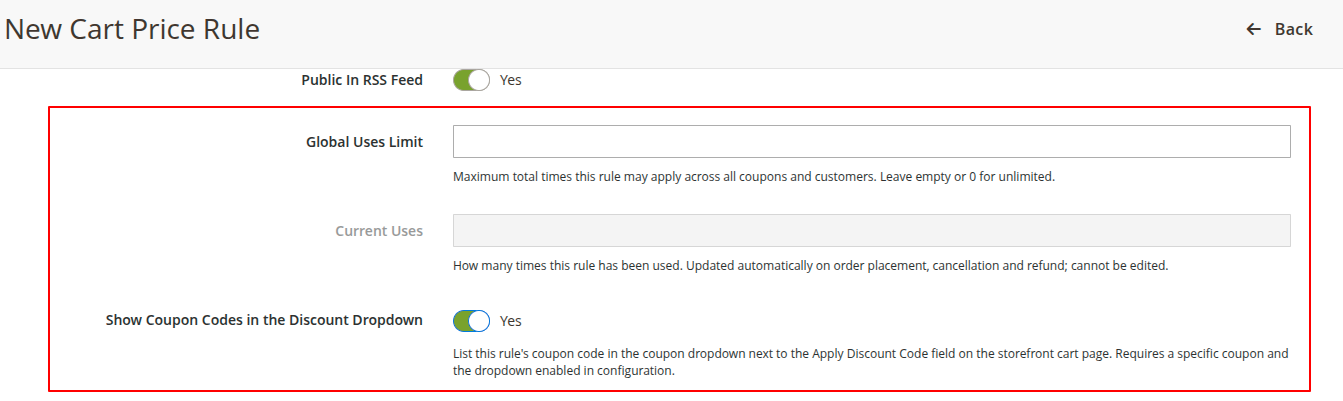
Along with standard Magento fields, the extension adds:
- Global Uses Limit: Define the absolute maximum number of times the rule may be used across all customers.
- Current Uses: A read-only counter displaying how many times the rule has been applied.
- Show Coupon Codes in the Discount Dropdown: Check this to include the rule's coupon code in the storefront Coupon Dropdown.
Actions
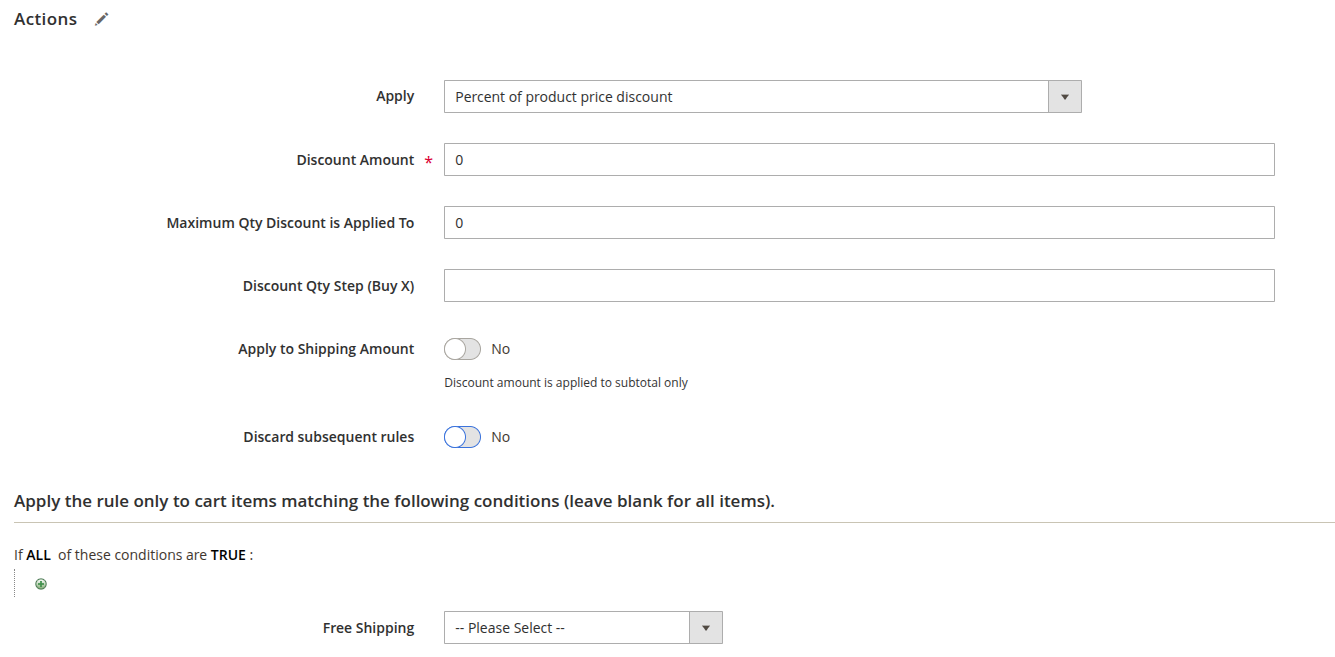
Select from the Apply dropdown to use one of the 26 discount actions. Some of the most popular actions include:
- Buy X, Get Y Free Across Any Products
- Percent Off the Cheapest or Most Expensive Item
- Money Off per Amount Spent
- Buy X, Get Y Percent Off / Money Off / at a Fixed Price
- Buy-More-Save-More and Spend-More-Save-More Tiers
- Percent Off / Money Off / Fixed Price Every Nth Item
- Fixed Price or Percent Off per Group of X Items
- Percent Off or Fixed Price for a Complete Product Set
 Custom Action Fields:
 - Max Amount of Discount: Set a hard cap on the maximum discount allowed per rule application.
- Number of Y Products: Specify how many Y products receive the discount in Buy X Get Y rules.
- After N: Start the discount only after a certain number of qualifying items are in the cart.
- At first apply discount to: Sort eligible items to discount either the cheapest or most expensive first.
- Calculate Discount Based On: Base the discount on the Original Price, Special Price, or the price after previous discounts.
- Use General Skip Settings: Check to apply the global skip rules configured in store settings.
- Define Y product: Enter Promo SKUs or Promo Categories to identify Y products for specific actions.
- Tiered Discount: Create a dynamic grid of quantity or spend tiers and assign respective discount percentages.
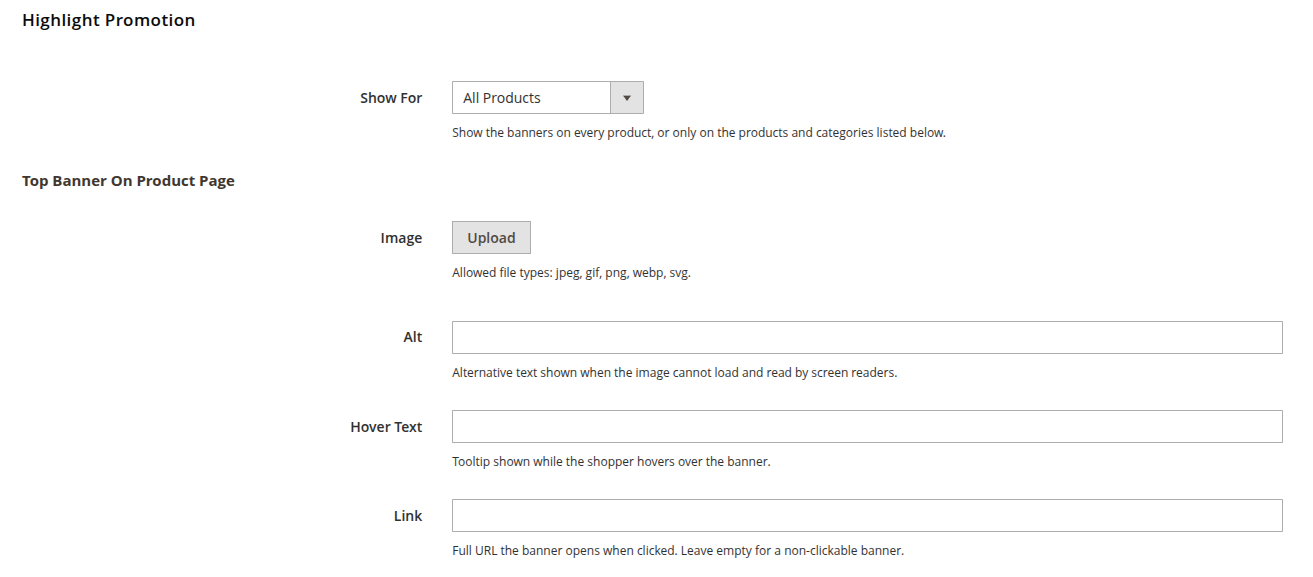
Highlight Promotion
Advertise your automatic (no-coupon) promotions directly on the storefront using labels and banners.
- Show For: Choose to display highlights for All Products, specific Product SKUs, or Products in specific Categories.
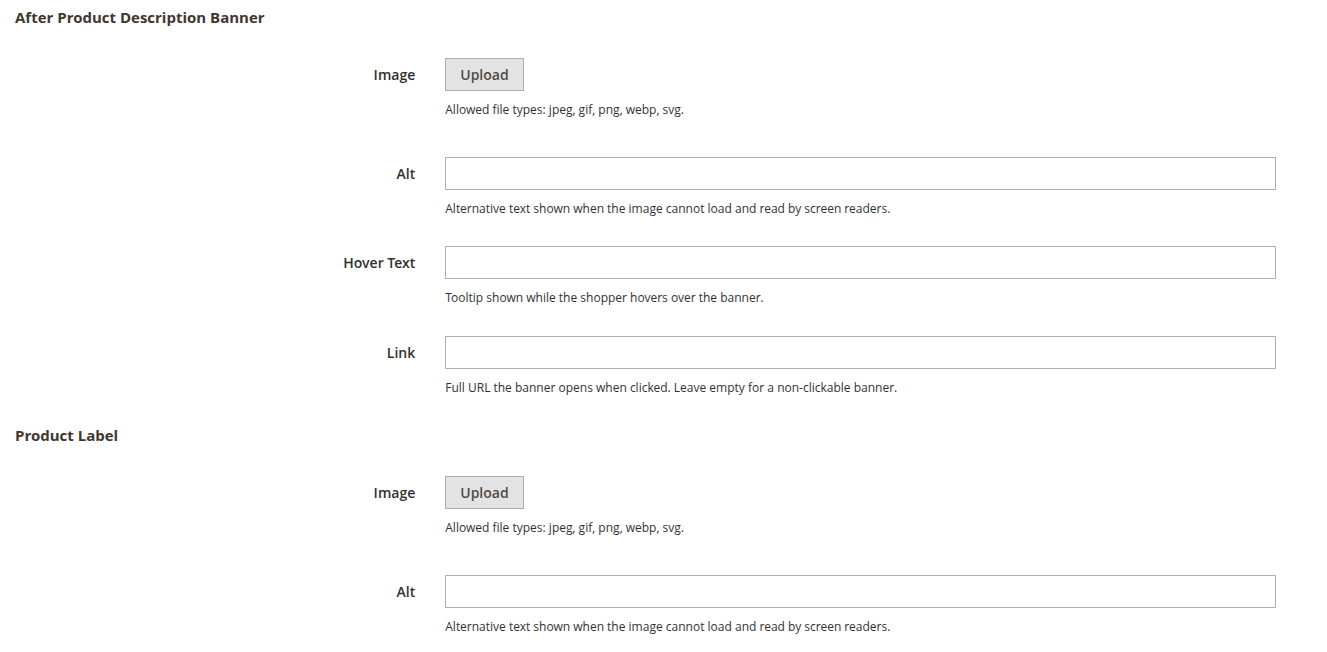
- Top Banner On Product Page & After Product Description Banner: Upload banners (jpeg, gif, png, webp, svg) to display above or below the product description. You can set Alt text, Hover Text, and a Link.
- Product Label: Upload a badge image to display on the product page and on the product's tile in category listings.
Coupon Dropdown
When enabled, the cart page displays an "Available coupon codes" dropdown beneath the standard coupon field. Shoppers can click a coupon to apply it instantly without typing. The dropdown dynamically filters coupons to only show those that are active, valid for the current website and customer group, and within their usage limit.
Promotions Usage Report
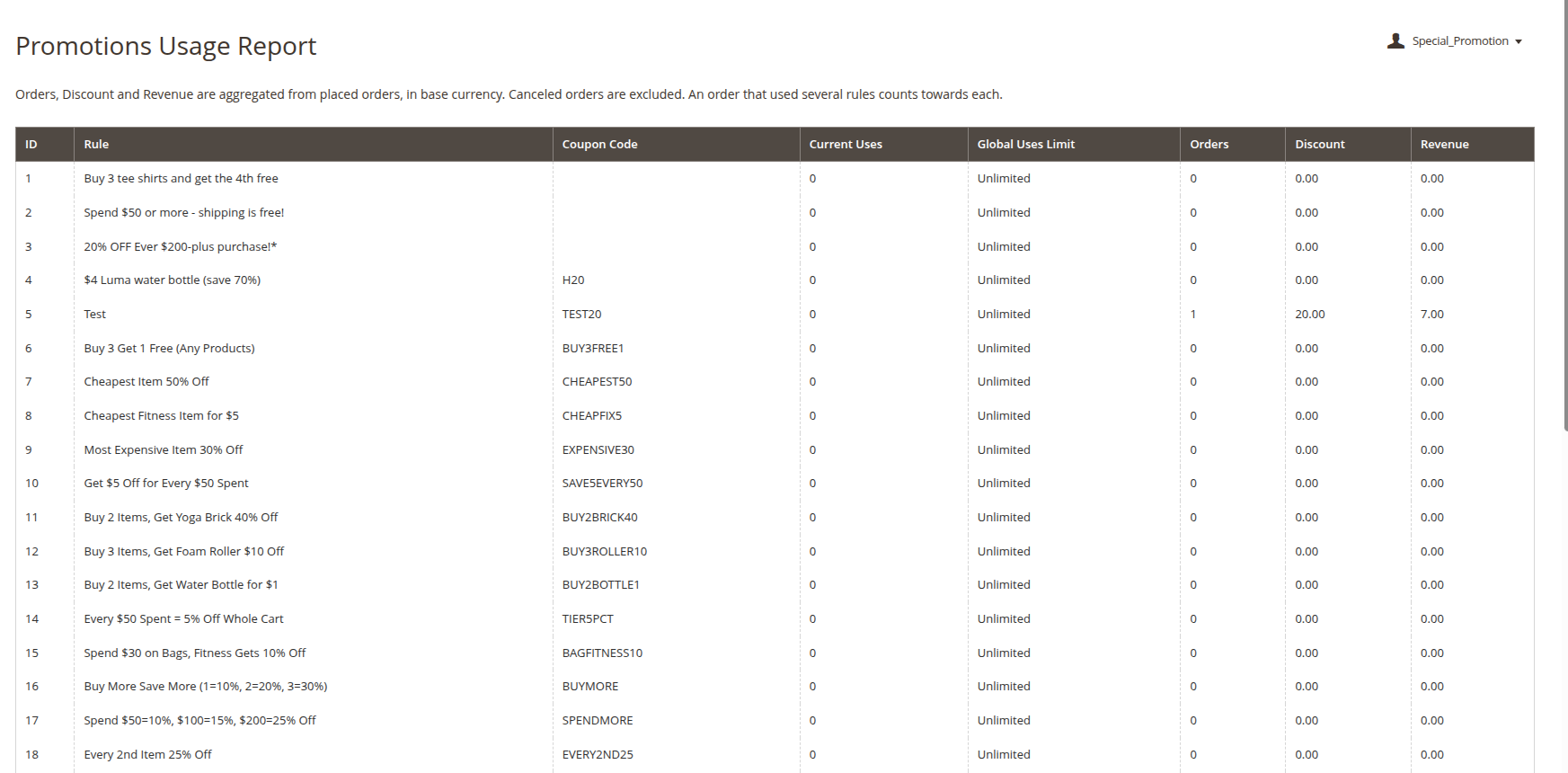
Navigate to Marketing > Promotions > Promotions Usage Report to track the success of your rules. This comprehensive report includes:
- Rule ID and Name
- Coupon Code
- Current Uses and Global Uses Limit
- Orders placed
- Total Discount granted
- Total Revenue generated
Additional Features & Highlights
- 100% Native Architecture: Discounts are applied as native totals, ensuring perfect compatibility with invoices, credit memos, and payment gateways without needing custom collectors.
- Hyvä & Luma Compatible: Fully compatible with both Luma and Hyvä themes. Highlight labels and dropdowns utilize native Tailwind/Alpine templates on Hyvä.
- Real-Time Calculation: Promotions take effect instantly at cart time. No cron jobs or indexers are required to run the engine.
- Multi-Website Support: Perfectly supports multi-website and multi-store setups, with base currency conversion working flawlessly for display currencies.